Web Push Notifications fail for a surprisingly small number of reasons. Almost every case comes down to a service worker that cannot be registered, a notification permission that has already been blocked, or a configuration mismatch inside the NVECTA dashboard. This guide walks through those causes browser by browser so you can identify the problem quickly and resolve it without guesswork.
Permission Prompt Not Showing in Chrome
When the Chrome permission prompt never appears, work through the following steps in order. Each one rules out a distinct cause, and stopping as soon as a step resolves the issue will save you time.
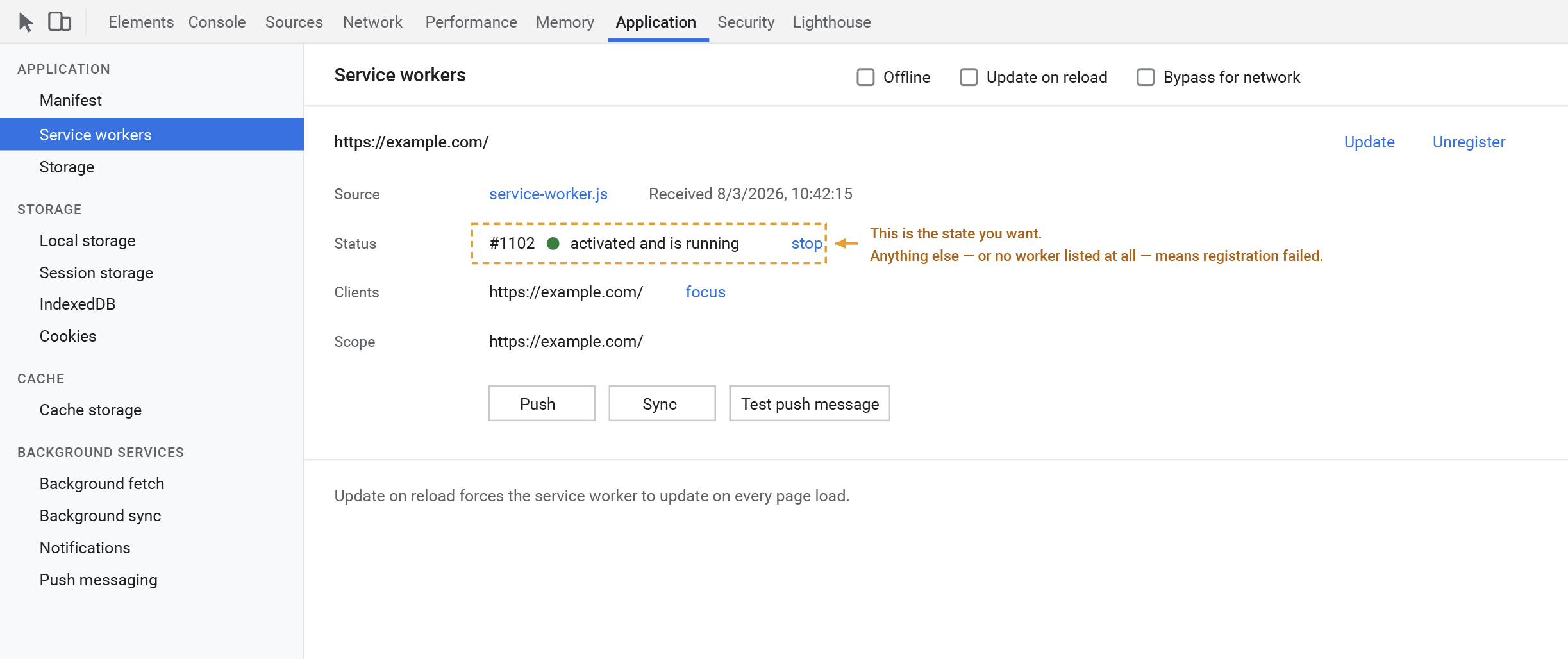
Step 1: Verify service worker registration
Open Developer Tools and go to Application, then Service Workers. If the NVECTA service worker is missing from the list or is showing an error, the problem lies with the file itself, and there are four things worth checking.
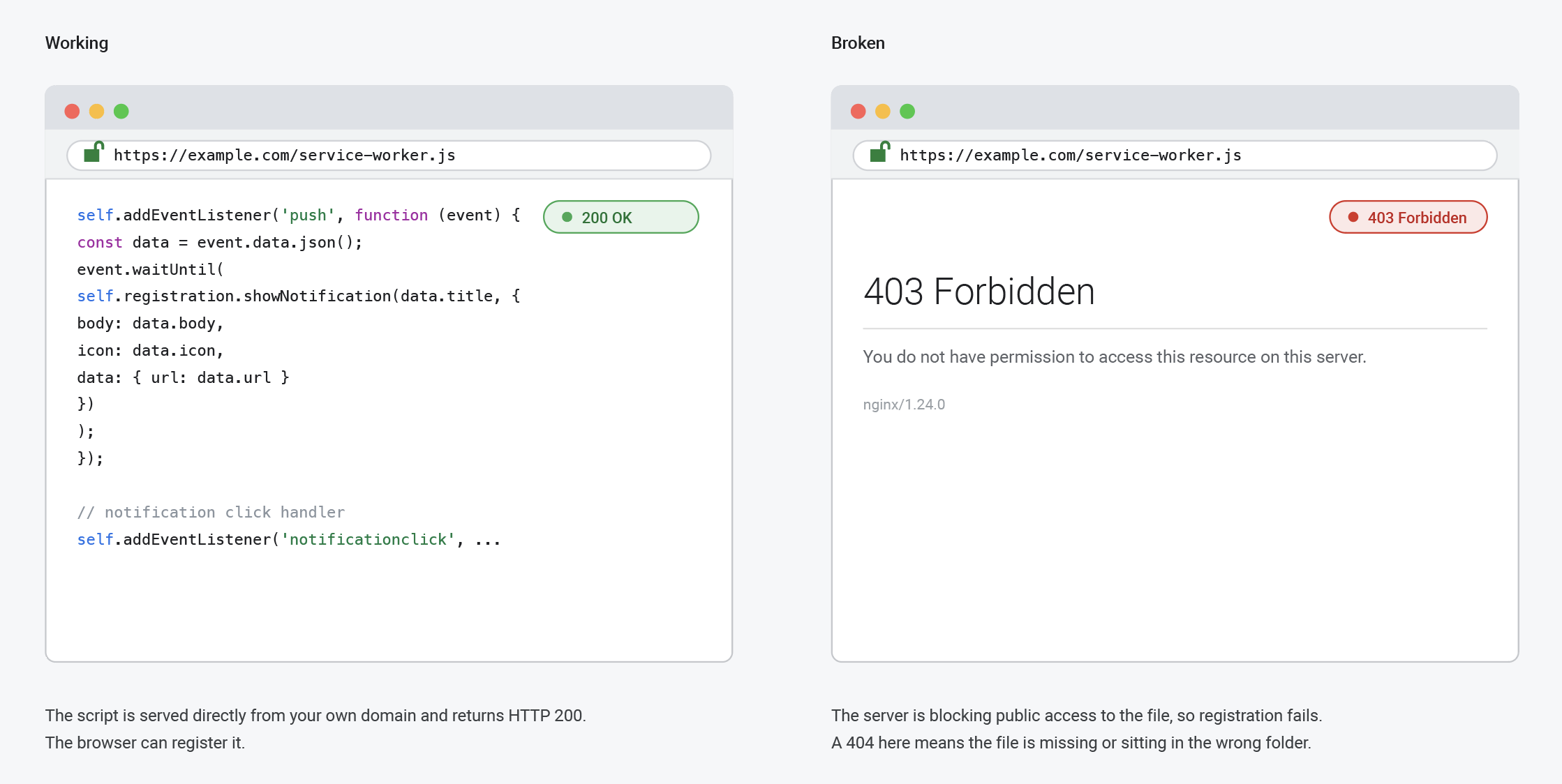
- Publicly accessible file: Confirm that the file is publicly accessible. The service worker must sit in your website’s root directory and return an HTTP 200 response when you open it directly in the browser, for example, at example.com/service-worker.js. A 403 or 404 response means something on the server is blocking public access to the file.
- No URL redirects: Make sure the URL does not redirect. A browser cannot register a service worker whose URL is redirected, so the file cannot be served through a CDN, a redirect, or any domain other than the one the visitor is currently on. It has to be delivered directly from the same origin as the page.
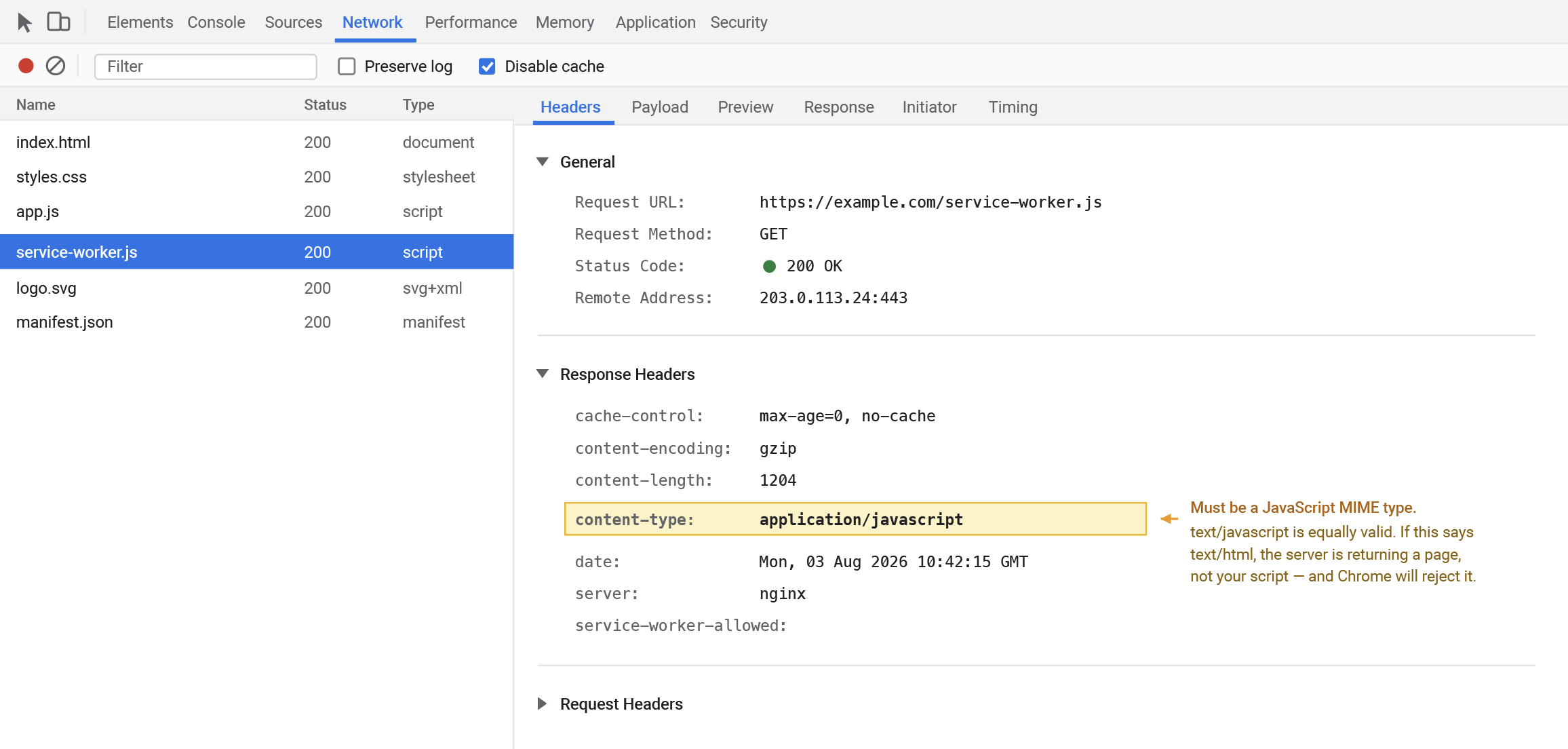
- Correct MIME type: Check the MIME type. The response header must read Content-Type: application/javascript. If the server returns anything else, such as text/html, Chrome will reject the script outright.
- Competing service workers: Only one service worker can control a given scope, so if your site already runs a PWA or another worker, merge the NVECTA worker into the existing one rather than registering both.
Step 2: Check the browser notification permission
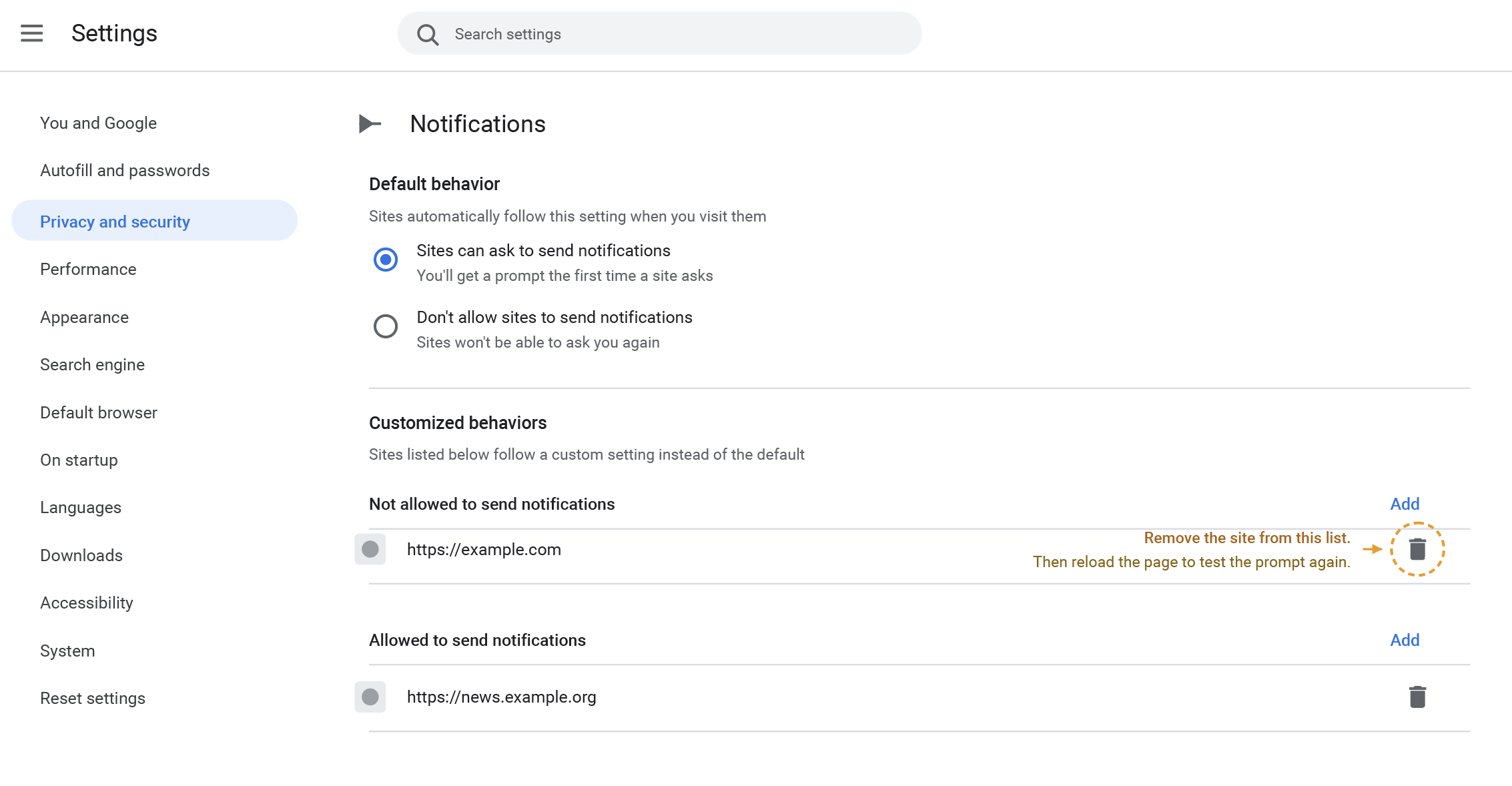
Once a visitor blocks notifications for your site, Chrome will not show the prompt to them again. Open Chrome Settings, then Privacy and Security, Site Settings, and Notifications, and look for your website under the Blocked list. Remove it from that list and reload the page to test again.
Step 3: Verify browser support
The prompt will not appear in incognito, guest, or private browsing windows because push subscriptions are not supported in these modes. Always test in a normal browser window running a current version of Chrome or Firefox.
Step 4: Check your NVECTA targeting rules
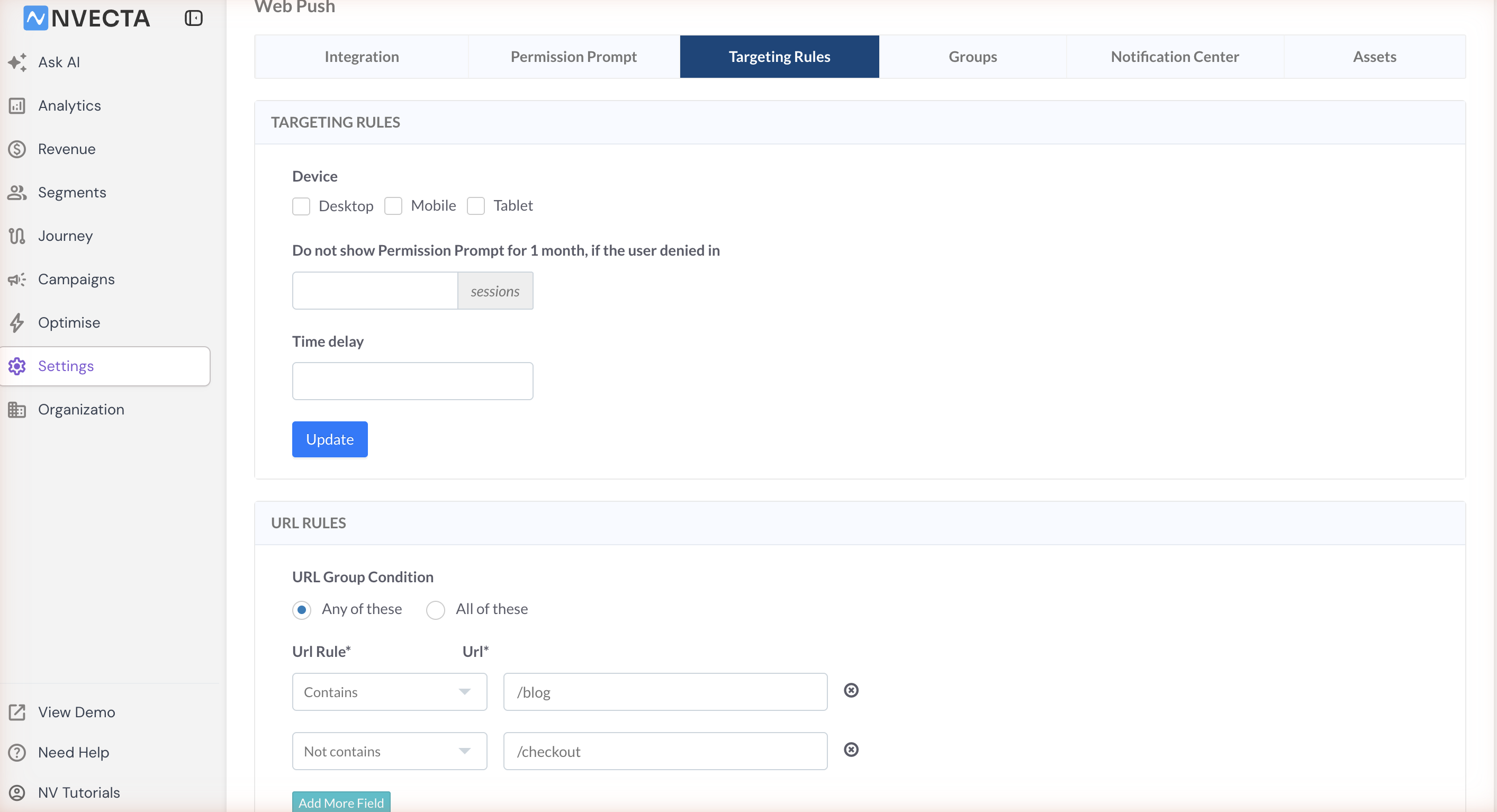
In the NVECTA dashboard, go to Settings, then Web Push, and open the Targeting Rules tab. Confirm that the page you are testing actually matches the configured URL rule. An include rule that is too specific, or an exclude rule that catches more pages than intended, will quietly suppress the prompt. If you want the prompt to appear across the whole site, remove the URL restrictions entirely.
Step 5: Clear cookies and site data
An earlier implementation may have left behind a push-block cookie, which tells NVECTA that the visitor has already dismissed the prompt. Clearing your cookies, site data, and browser cache resets this state. Reload the page afterwards and test as a first-time visitor.
Permission Prompt Not Showing in Safari
Safari implements web push differently from Chrome, so a separate set of checks applies.
Verify the Safari website configuration
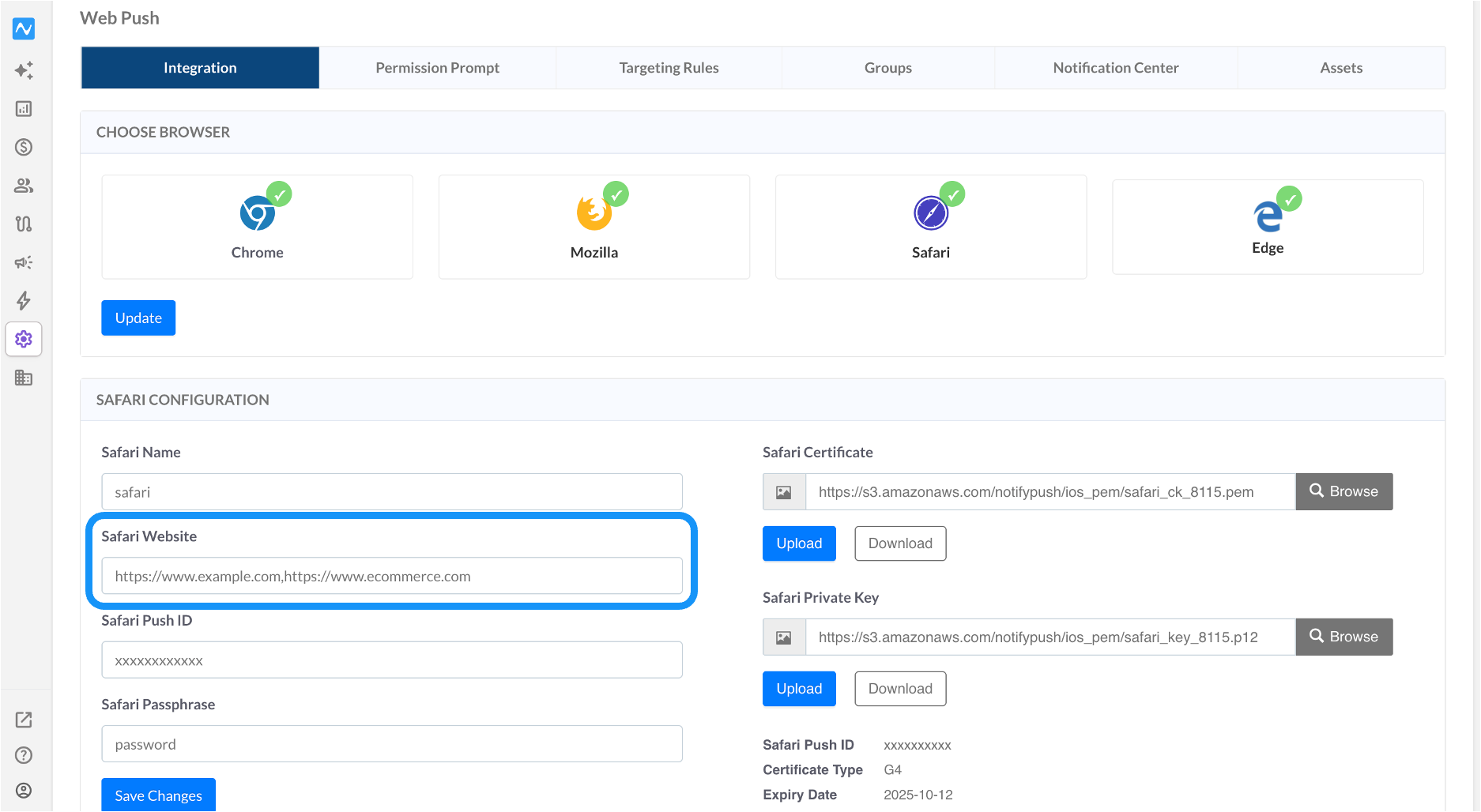
The Safari website URL configured in the NVECTA dashboard must match your website exactly. Notice that example.com and www.example.com are treated as entirely different origins, so a mismatch between the two will stop the prompt from appearing. Enter it as https://www.example.com.
Clear Safari cache and permissions
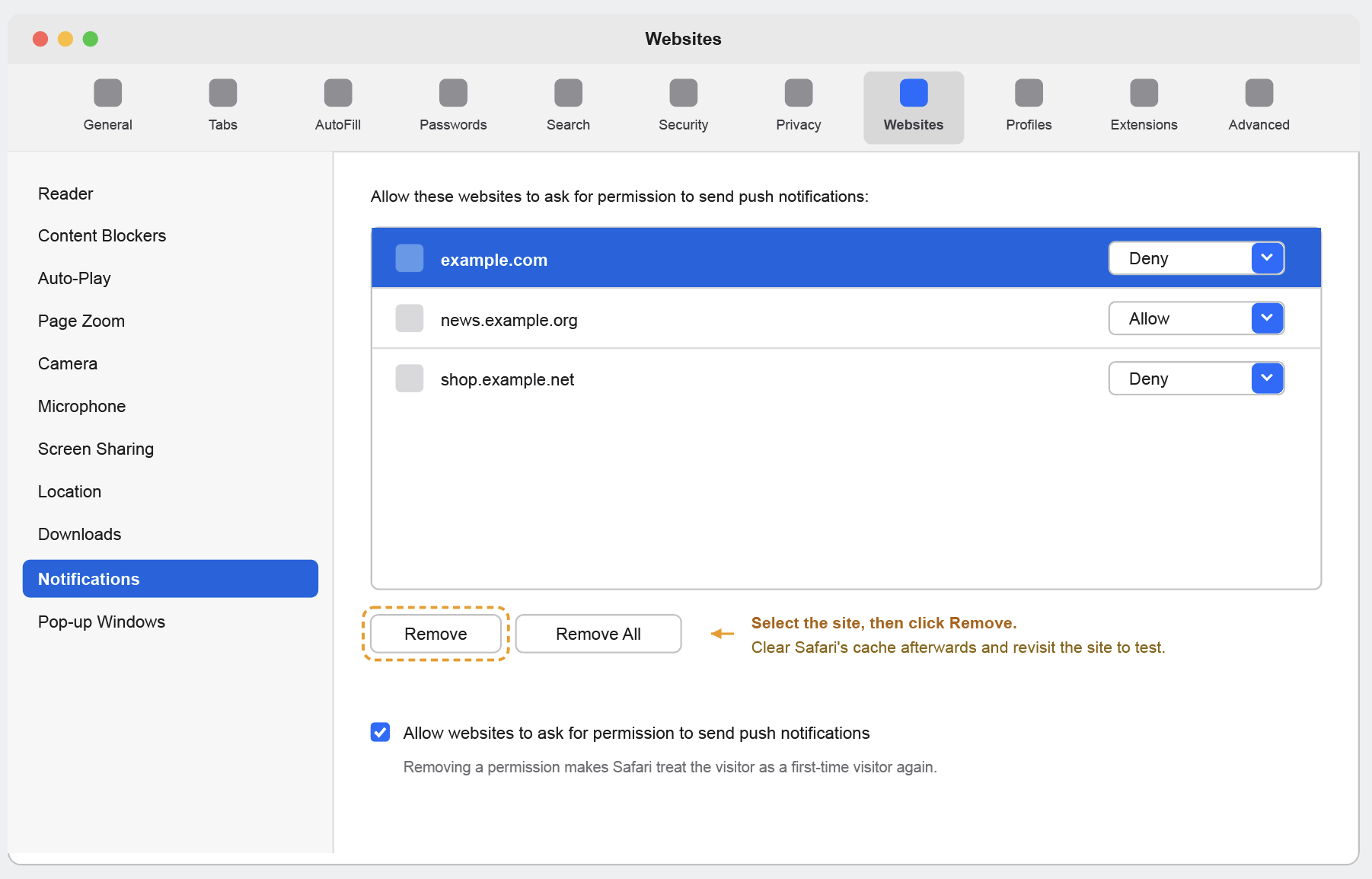
Remove the stored website notification permission, clear Safari’s cache and cookies, then revisit the website so that it treats you as a first-time visitor.
Verify browser support
Safari push notifications are only available on:
- macOS 13 Ventura or later with Safari 16.1 or later, and
- iOS or iPadOS 16.4 or later, where the website must first be added to the Home Screen as a web app.
Confirm that the browser and operating system in use actually support Web Push before investigating further.
Safari Site Name or Icon Not Updating
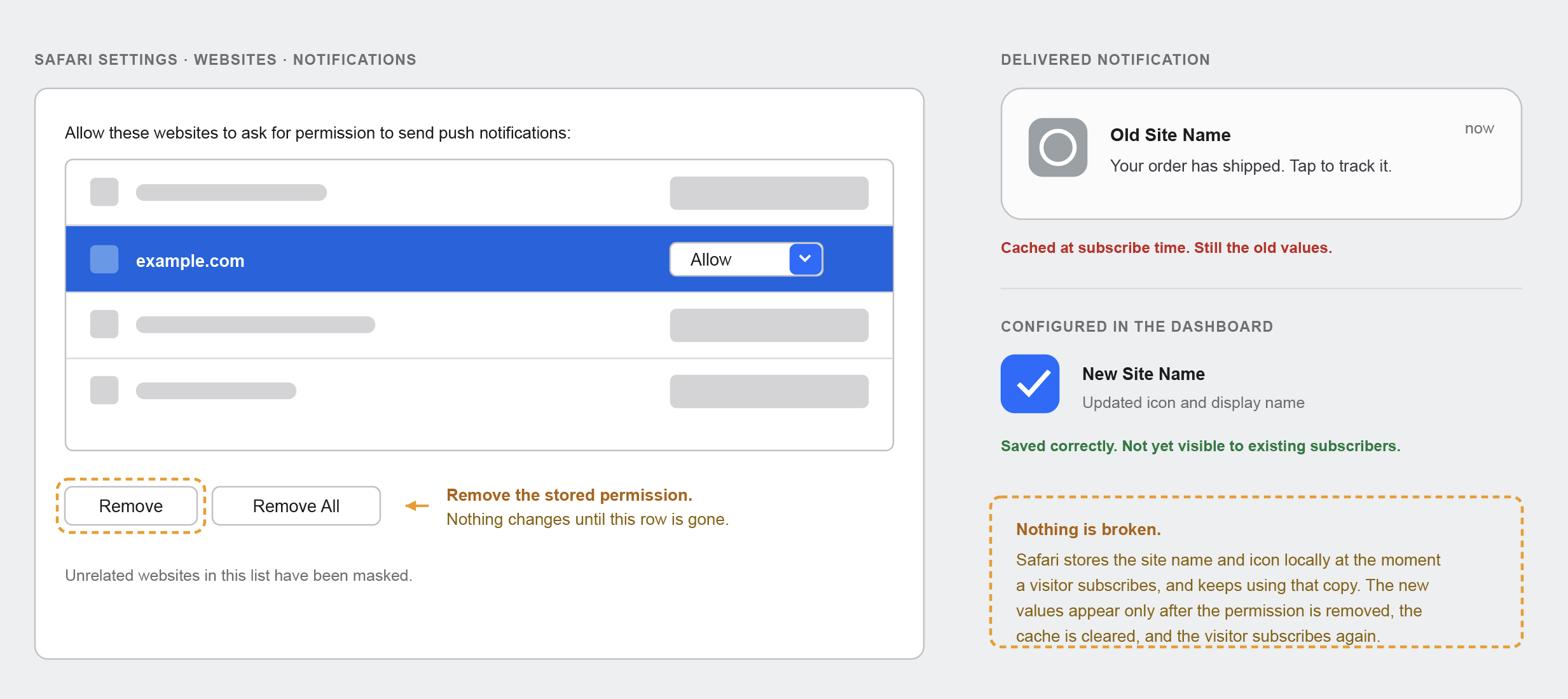
If you have changed your website name or your push notification icon but Safari still shows the old values, nothing is broken. Safari stores the site name and the icon locally at the moment a visitor subscribes and keeps using that cached copy afterwards. The new values appear only after the website notification permission is removed, the Safari cache is cleared, and the visitor subscribes again.
Safari Notification Click Not Working
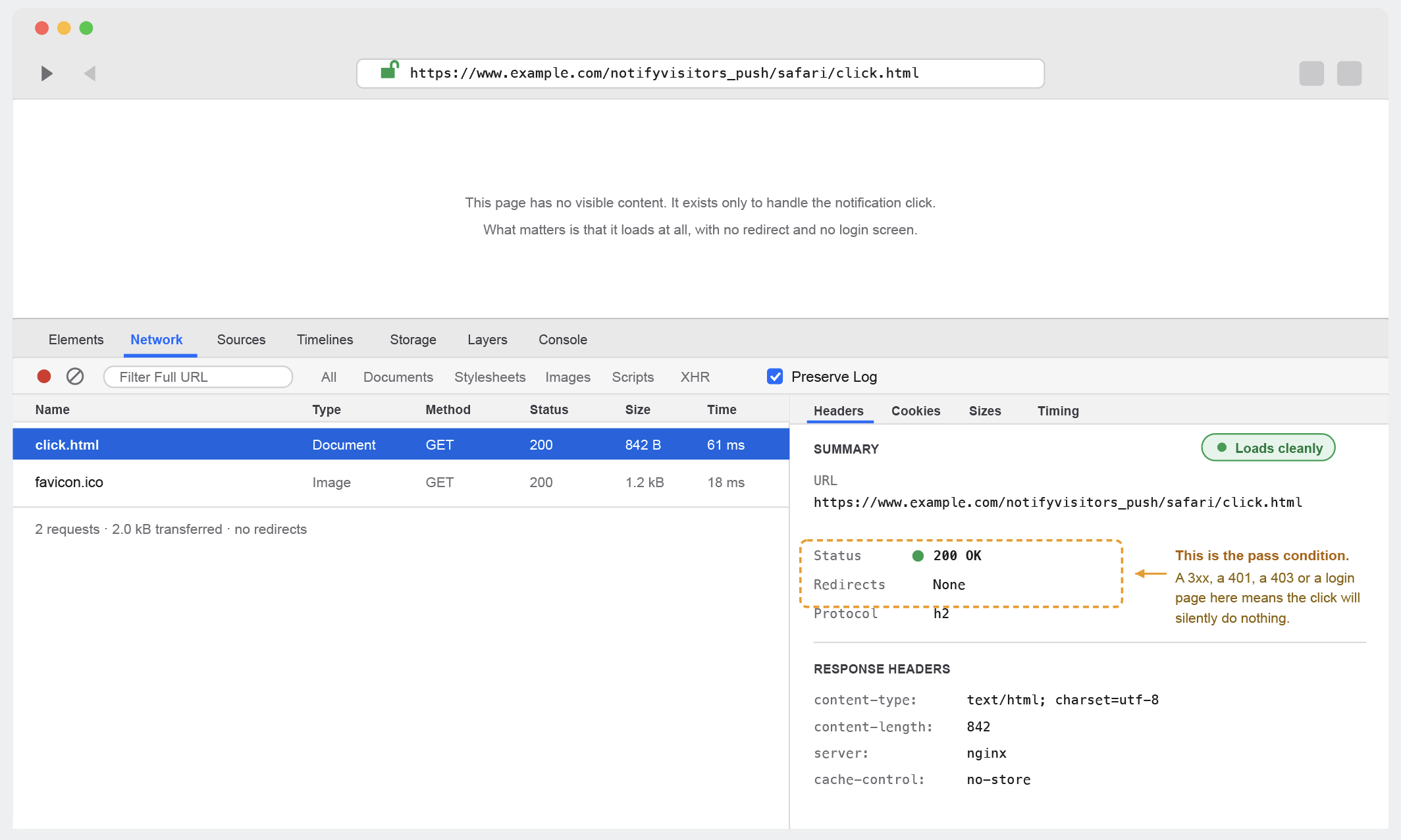
When notifications are delivered but clicking them does nothing, the click handler file is almost always unreachable. Confirm that the file at https://www.example.com/notifyvisitors_push/safari/click.html exists on your domain and is publicly available. It has to return HTTP 200; it must not redirect, and it must not sit behind any form of authentication. If the URL does not open cleanly in a browser, a click on the notification will silently do nothing.
Quick Troubleshooting Checklist
Once you know the symptom, this table points you straight at the setting or file that is usually responsible.
| Issue | What to check |
|---|---|
| Chrome prompt not appearing | Service worker registration |
| Service worker fails to register | 403 or 404 response, redirect, MIME type |
| Site already runs a PWA or another worker | Merge the workers into one |
| Prompt never appears for a visitor | Notification permission already blocked |
| Prompt appears only on some pages | Targeting rules in the NVECTA dashboard |
| Safari prompt missing | Safari website URL configuration |
| Safari icon or site name not updating | Clear permissions and subscribe again |
| Safari notification click not working | NVECTA/safari/click.html is reachable |
Before Contacting NVECTA Support
If none of the checks above resolve the issue, gather the following details before you raise a ticket. Having them in hand lets the support team reproduce the problem instead of asking for information first, which usually shortens the resolution time considerably.
- Website URL
- Browser name and version
- Operating system
- Screenshot of the browser console
- Screenshot of Application, then Service Workers
- Screenshot of the browser notification permissions
- The service worker URL
- Whether the issue affects every user or only specific users
Was this article helpful?
That’s Great!
Thank you for your feedback
Sorry! We couldn't be helpful
Thank you for your feedback
Feedback sent
We appreciate your effort and will try to fix the article